Google Ads permissions required to connect to ClickPatrol
Before you can connect your Google Ads account to ClickPatrol, the Google account you use for authentication must have the appropriate level of access.
This article explains what permissions are required and how to check them.
How ClickPatrol connects to Google Ads#
ClickPatrol connects via Google OAuth. When you initiate the connection in ClickPatrol, Google displays a consent screen asking you to grant ClickPatrol the following permission:
"See, edit, create, and delete your Google Ads accounts and data"
ClickPatrol uses this access to update your tracking templates and exclude invalid IP addresses from your campaigns. These are the two core actions ClickPatrol performs to protect your ad spend.
Because the connection is tied to the Google account you authenticate with, ClickPatrol can only act on accounts that the Google account already has permission to edit. If your access level does not allow editing, ClickPatrol's protections will not function correctly.
What access level do you need#
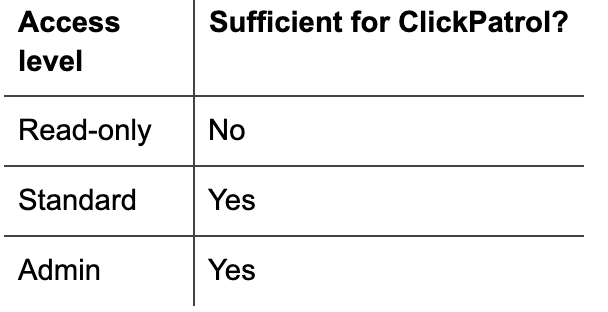
You must have Standard or Admin access on the Google Ads account you want to connect.
Read-only access is not sufficient. ClickPatrol requires edit-level access to update tracking templates and manage IP exclusions.
How to check your access level#
- Sign in to the Google account you plan to use for the ClickPatrol connection.
- Go to your Google Ads account.
- Click the Admin icon, then click Access and security.
- Find your email address in the list.
- Check the value in the Access level column.
If your access level shows Standard or Admin, you are ready to connect.
If it shows Read-only or Email-only, you need the account owner to update your access level before proceeding.
Connecting a standard Google Ads account#
If you are the account owner, you already have Admin access and can connect directly. Proceed to the Google Ads connection flow in your ClickPatrol dashboard.
If you are an agency manager or team member who has been added to a client's account, the account owner must grant you Standard or Admin access on that specific account. Being added with Read-only access is not enough.
Important: Once you authenticate with Google and ClickPatrol displays the account dropdown, you will only see accounts that your Google account has access to. If the account you want to connect does not appear, check that your Google account has been added to it with the correct access level.
Connecting a Manager Account (MCC)#
If your Google Ads accounts are organized under a Manager Account (MCC), connect the MCC rather than individual sub-accounts.
Your Google account must have Standard or Admin access on the MCC itself. The sub-accounts you want to protect must also be linked as clients under that MCC.
After authenticating with Google in ClickPatrol:
- In the account dropdown, select your Manager Account (MCC).
- A second dropdown will appear. Select the specific sub-account you want ClickPatrol to protect.
- Click Connect Google Ads account.
Was this article helpful?
Let us know so we can improve our documentation
Need Help?
If something isn't working or you have questions, our support team is here to help you.
Contact Support